Seeing a Variants section in your product setup instead of Does your product come in different options? Use this article for the previous experience to set up and manage variants.
The things you sell may come in different sizes, colors, scents, formats, or styles. Product options let you offer those choices under one product listing, so customers can select the version they want before adding it to their cart.
For example, a t-shirt might have Size and Color options, a candle might have a Scent option, and a digital download might have a File format option.
Understand options and choices
When setting up your product, you'll work with two fields:
- Option name: The label customers see, such as Size, Color, or Scent.
- Option choices: The selections available under that name, such as Small, Medium, and Large for Size, or Rose, Mint, and Lavender for Scent.
Big Cartel uses your choices to automatically create variants, the individual versions of your product. For example, a shirt with three sizes and two colors has six variants - one for each combination. Small / Black is one variant; Small / White is another and so on.
You can add up to 3 options per product, with up to 150 total variants created from their choices.
Create product options
- Go to Products in your Big Cartel admin.
- Click Add product, or open an existing product to edit.
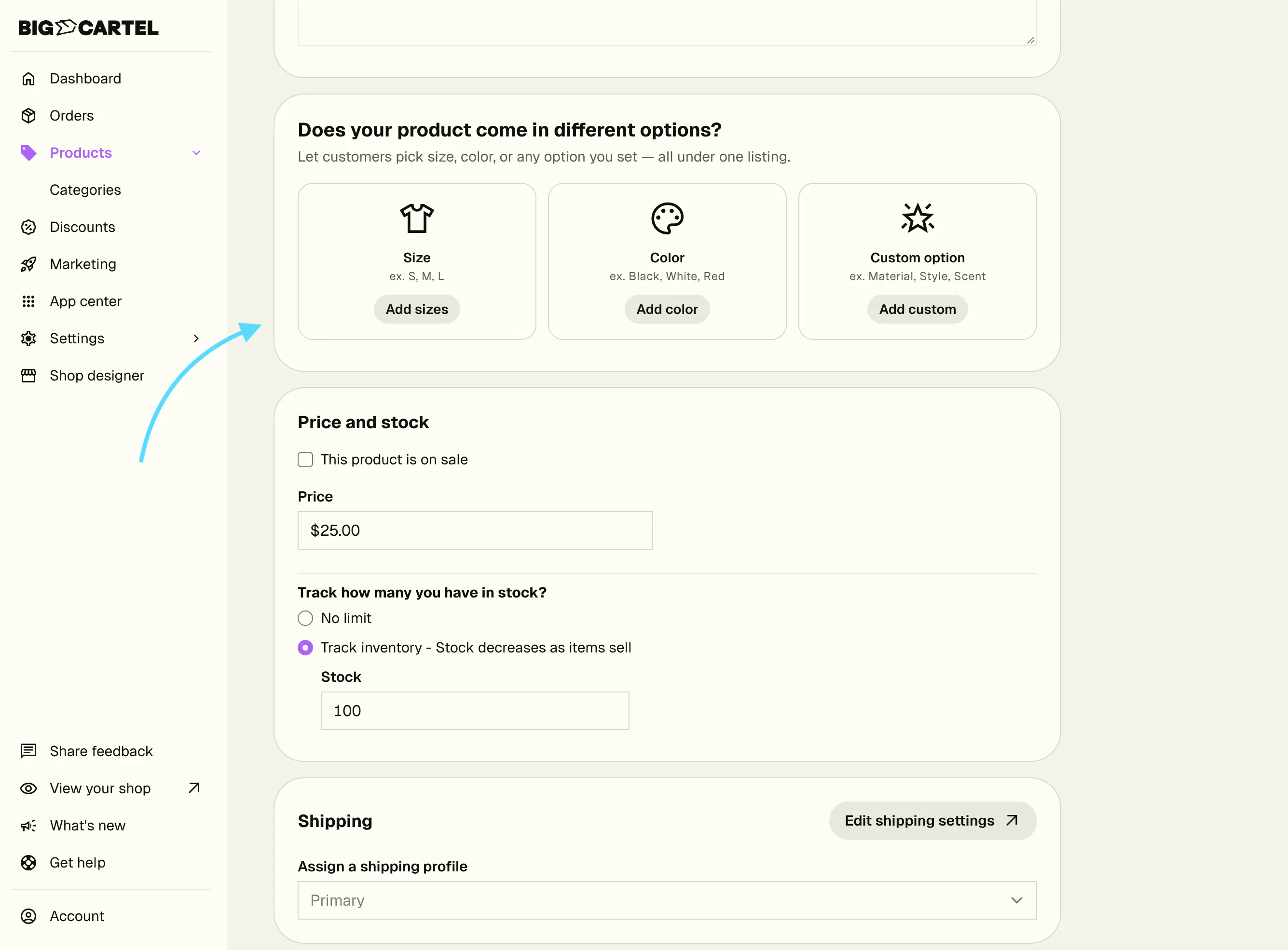
- Scroll to Does your product come in different options? If the product already has options, go to the Options section and select Add more options.
- Choose a starting point based on the type of product you’re listing. For a physical product, select Add sizes, Add color, or Add custom to create your own option. For a digital product, select Add file formats or Add custom to create your own option.
- In Option name, keep the suggested name or enter your own. Customers will see this label when choosing a version of your product.
- Add your selections under Option choices. For Size or Color, click the field to reveal suggested choices, then check the boxes beside the choices you want to include. You can also type your own choices and press Enter/Return after each one. For File format or a Custom option, type each choice and press Enter/Return to add it. For example, use .pdf, .jpg, and .svg as file format choices. To remove a choice, click the X beside it.
- Review the What customers will see preview. Check the option name and available choices, then click Add.
- When the confirmation appears, click Done or continue adding options. To add another option from the product page, select Add more options and repeat the process.
Big Cartel automatically creates a variant for each combination of your choices and displays them in the Variants section. Save your product after reviewing their prices, stock, and shipping details.
For digital products, use Manage files in the Digital product section to attach your downloadable files or URLs.

Manage prices, stock, and shipping
Once your product has options, manage the individual combinations in the Variants section.
Use Group by to organize the list by an option, such as Size or Color. To edit a specific combination, click the arrow beside its group to expand the list and find that variant.
Set prices
Use the Price column to set the price for each variant. Your variants can share the same price, or you can charge different prices for versions that cost more.
Complete your variants
Variants without a price appear under Incomplete Variants. Expand the group if needed, click Add price beside the variant, and enter its price.
Incomplete variants won't appear in your storefront. For digital products, make sure each variant also has its required file or URL.
Complete any missing information before finishing your product setup.
Manage inventory
To track stock, make sure inventory tracking is enabled in Settings.
On the product, find Track how many you have in stock? under Price and stock, then choose:
- No limit if you don't need to track stock quantities for this product.
- Track inventory - Stock decreases as items sell to track the quantity available for each variant.
If you're tracking inventory, enter the available quantity for each variant in the Stock column. Stock is tracked per variant and decreases as those items sell.
Set shipping details for physical products
For physical products, you can configure shipping details for each variant. The settings available depend on your shop's shipping setup:
Shipping setup | What to update |
|---|---|
Manual shipping | Use the pencil icon in the Shipping column to select the appropriate shipping profile for each variant. |
Automatic shipping | Enter each variant's weight in the Weight column. Click an existing weight to edit it, or Add weight if one hasn't been entered. |
Edit or reorder options and choices
Your added options appear in the product's Options section.
- Edit an option: Click the pencil icon beside the option to change its name or update its choices. You can select more suggested choices for Size or Color, or type new choices and press Enter/Return.
- Remove a choice: Open the option with the pencil icon, then click the X beside the choice you want to remove.
- Reorder choices: In the option editor, use the reorder handle beside a choice to drag it into the position you want.
- Reorder options: Use the reorder handle on the left side of an option card to drag the entire option into position.
- Remove an entire option: Click the trash can icon beside that option in the Options section.
After editing an option, save your changes in the option editor.
Remove an individual variant
If you no longer offer a specific combination, find it in the Variants section. Expand its group if needed, then click the trash can icon beside that variant.
After you save your product, that combination will no longer be available in your storefront.
Save your product
Review your option names, choices, and their order. Check that the variants you want to offer have prices and the correct stock and shipping details, then save your product to apply your changes.
Still have questions? We're here to help. If you need assistance adding product options, managing variants, or setting up prices and inventory, don't hesitate to contact our support team. We'll be happy to help you get everything set up just the way you want.