Put away your spreadsheets and Post-it Notes, Big Cartel's inventory tracking makes inventory management easier. This feature helps you keep track of your stock and can prevent you from selling more items than what you have available.
Inventory tracking is available on paid plans. Upgrade from the Plan & Billing section in your admin to get this feature.
Why you should use it
With inventory tracking enabled, and overselling disabled, any item in your shop that reaches a quantity of zero will display as Sold Out automatically. This way you won't accidentally sell a product that's not available.
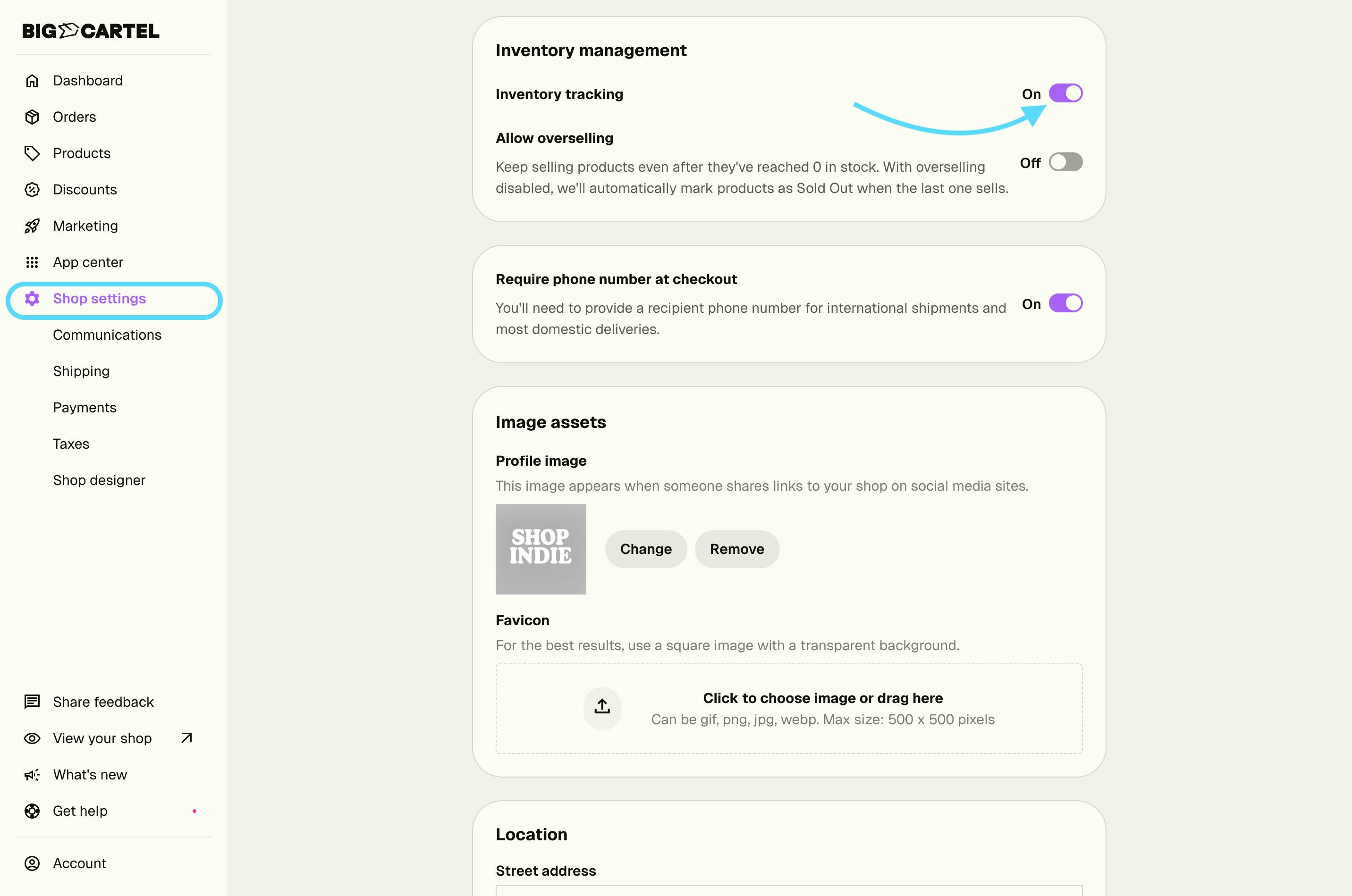
A note about Allow overselling: This setting, which is located just below the inventory tracking setting, would allow you to sell more of a product than what's in stock - even after the quantity hits zero. Stores with limited quantities available to sell, however, should leave this option turned off.
Choose which products to track
Once inventory tracking is enabled in your shop settings, you can choose how to manage stock when adding or editing a product.
Under Track how many you have in stock?, select one of the following:
- No limit: Customers can continue purchasing the product without Big Cartel tracking a stock quantity.
- Track inventory – Stock decreases as items sell: Enter the quantity available, and Big Cartel will automatically update your stock as items sell.
If your product has different sizes, colors, or other options, you can track inventory separately for each variant in the Variants section.
You can return to a product at any time to update its inventory settings or stock quantities.
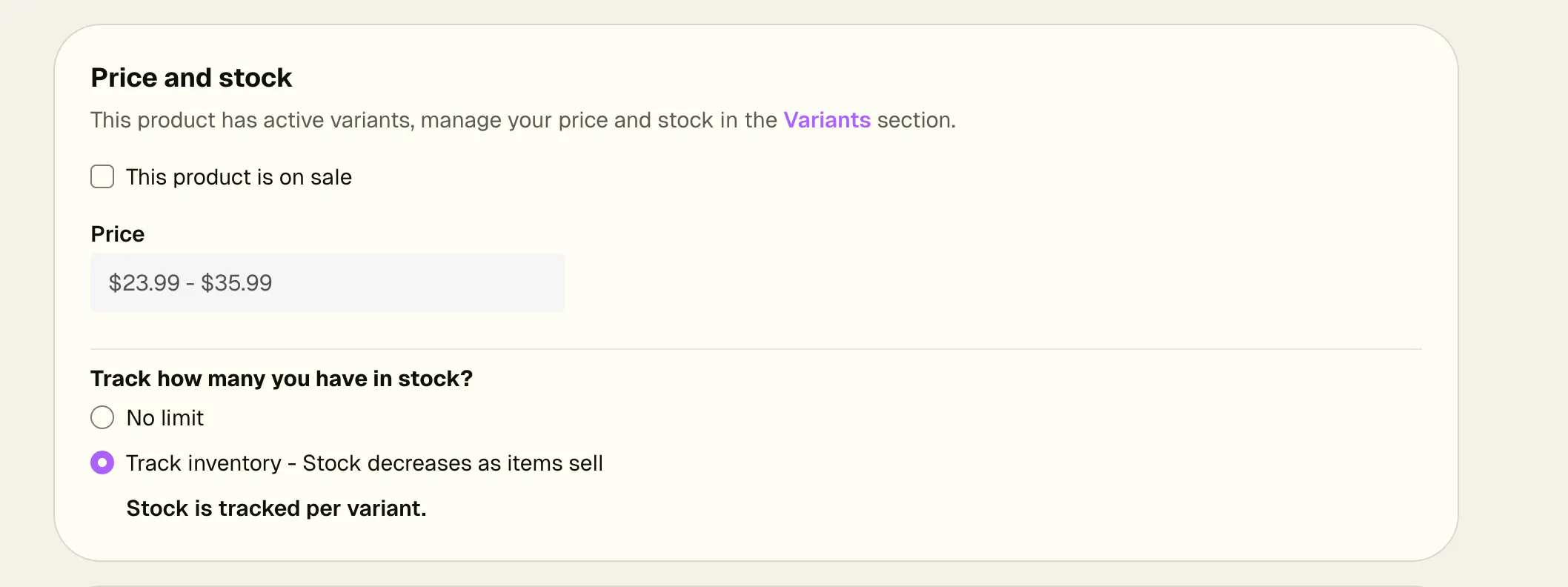
If your product has variants, such as different sizes or colors, you can choose an inventory option and enter a stock quantity for each variant.
You can return to the product at any time to change its inventory option or update the amount available.
Adjust inventory levels
Need to update your stock after restocking, selling items in person, or making other inventory adjustments? You can update quantities directly from your product listing.
For products without options, update the Stock field under Price and stock.
For products with options, use the Variants section to adjust the stock quantity for each individual variant. You can use Group by to organize variants by an option, such as Size or Color, and expand a group to find the variant you want to update.
Save your product to apply your changes.
Steps
- Log in at app.bigcartel.com.
- Go to Settings.
- Toggle on Inventory tracking.
- Click Save.
- Go to Products and select the product you'd like to update.
- Under Price and stock, find Track how many you have in stock? and select Track inventory – Stock decreases as items sell.
- If your product doesn't have options, enter the available quantity in the Stock field. If your product has options, scroll to the Variants section and enter the available quantity for each variant in the Stock column.
- Click Save to update your product.