Add a Logo to Your Shop
Your logo appears in the header of your Big Cartel shop. By default, your shop name appears as text. Uploading a logo image replaces that text with your logo.
Before you upload
Prepare your logo file:
- Format: PNG is recommended. Use a transparent background if you do not want a visible box behind the logo.
- Resolution: Use a high-resolution file so the logo looks clear on desktop and mobile.
- Readability: Make sure the logo is easy to read at smaller sizes.
- File size: Check the template your using for correct file size.

Upload your logo
- Open Shop Designer.
- Go to Settings.
- Find the logo setting in the Navigation and Layout section. It may be labeled Logo, Welcome or Header image.
- Select Upload or Choose file.
- Choose your logo file.
- Preview the logo in both desktop and mobile views.
- When it looks right, click Done, then Publish.
Why your shop name still appears as text
If your shop name is still showing after you upload a logo:
- Make sure the file has finished uploading.
- Confirm that the logo appears in the upload field.
- Make sure you published your changes.
- Check whether your template requires a specific header setting to display the logo.
Adjust the logo size
Some templates (Cosmos, Lunch Break, Roadie, Luna, and Sunscreen) may include a setting for changing the logo height or size.
Look for a setting such as:
- Logo size
- Logo image size
- Header logo height
Adjust the size until the logo fits well with the header and navigation.
Check the mobile version
Your logo may display differently on mobile.
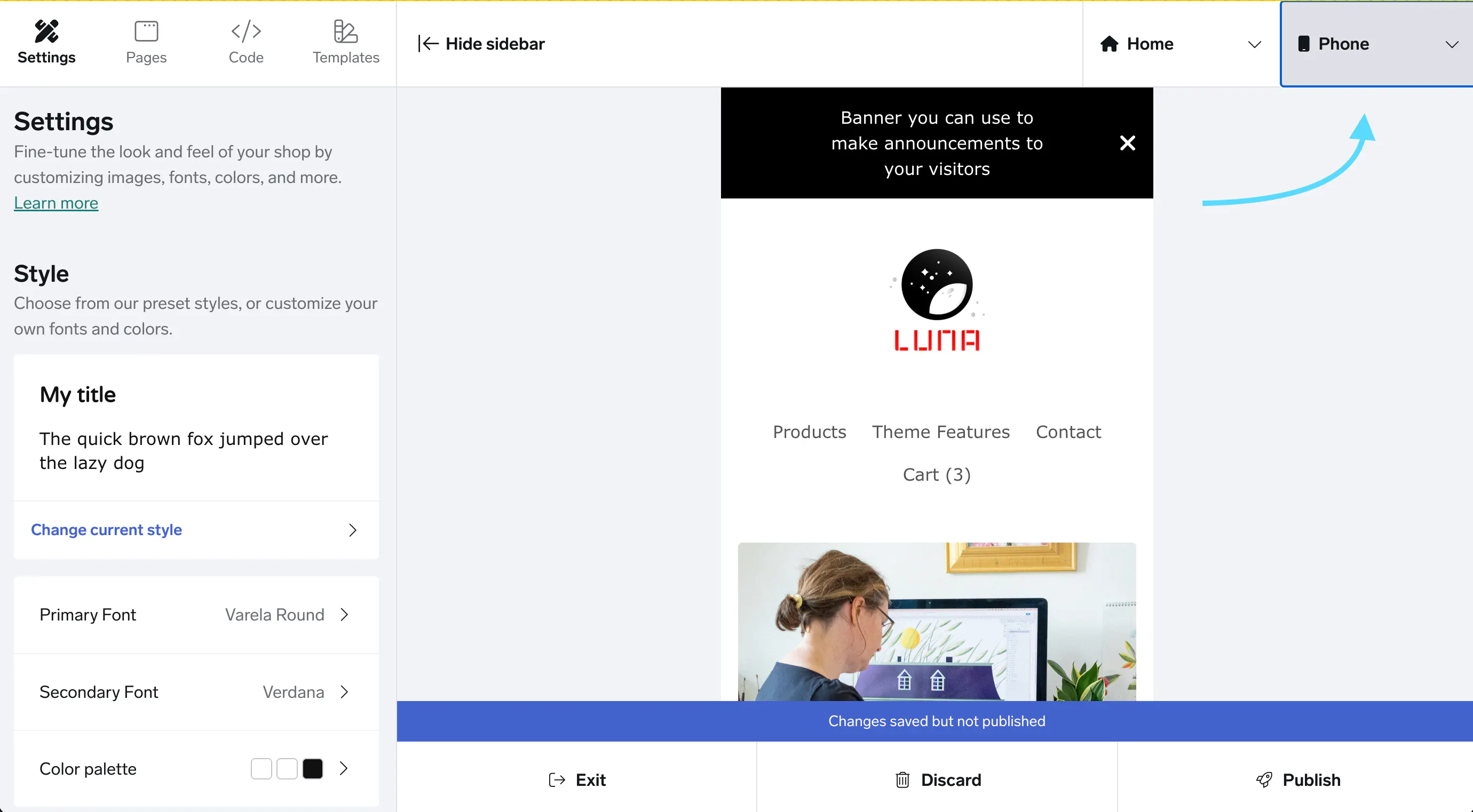
Before publishing, confirm that:
- The logo is not blurry.
- The logo is not cut off.
- The logo is readable at a smaller size.
- The header and navigation still fit correctly.
Once you’ve published your new logo you’ll see it in the shop header on both desktop and mobile, and it will have either replaced or repositioned your shop name, depending on the template you’re using.
How helpful was this article: